> ## Documentation Index
> Fetch the complete documentation index at: https://build.onswig.com/llms.txt
> Use this file to discover all available pages before exploring further.
# Subscriptions & Billing
This guide covers subscription tiers, billing management, and usage tracking in the Swig Developer Portal.
## Subscription Tiers
Swig offers four subscription tiers to match your needs:
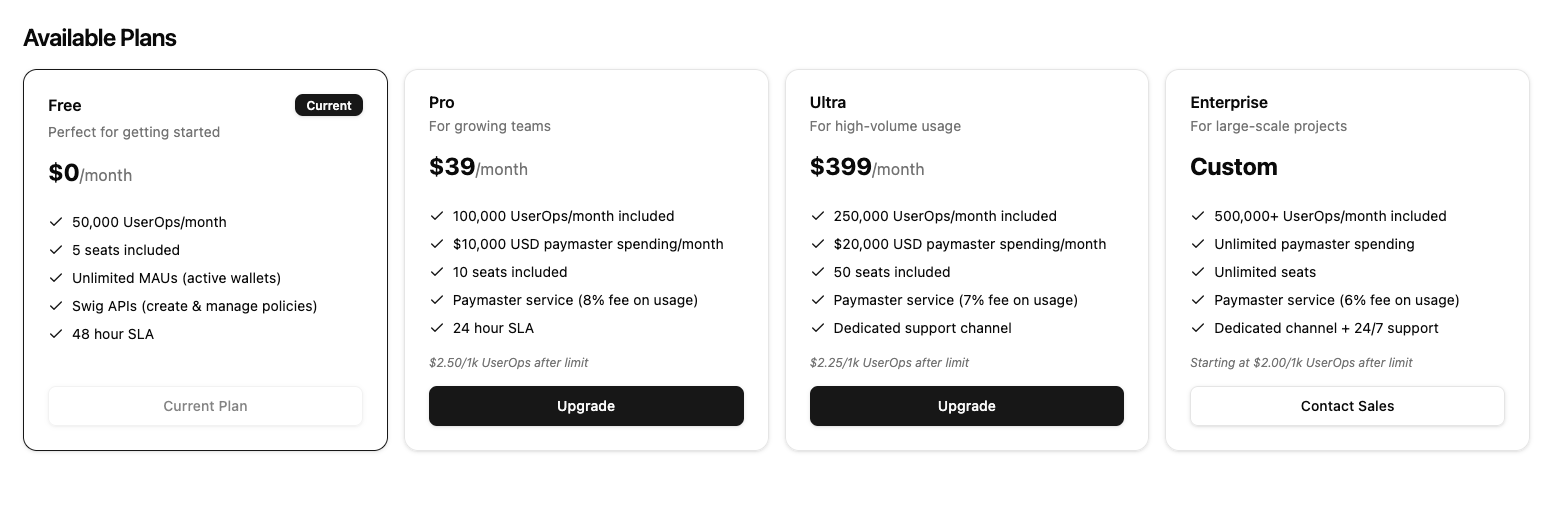 | Feature | FREE | PRO | ULTRA | ENTERPRISE |
| -------------------------- | ------- | ----------- | ----------- | -------------- |
| **Price** | \$0/mo | \$39/mo | \$399/mo | Custom |
| **UserOps/month** | 50,000 | 100,000 | 250,000 | 500,000+ |
| **Team Seats** | 5 | 10 | 50 | Unlimited |
| **Paymaster Access** | No | Yes | Yes | Yes |
| **Paymaster Limit** | - | \$10,000/mo | \$20,000/mo | Unlimited |
| **Paymaster Fee** | - | 8% | 7% | 6% |
| **SLA** | 48 hour | 24 hour | Dedicated | 24/7 |
| **Overage Rate (UserOps)** | - | \$2.50/1k | \$2.25/1k | From \$2.00/1k |
## Managing Your Subscription
### Viewing Current Plan
1. Log in to the [Developer Portal](https://dashboard.onswig.com)
2. Go to **Billing** in the sidebar
3. View your current tier, usage, and limits
### Upgrading Your Plan
1. Go to **Billing** in the sidebar
2. Click **Upgrade**
3. Select your desired tier
4. Complete the Stripe checkout
5. Your new features are available immediately
### Downgrading Your Plan
1. Go to **Billing** in the sidebar
2. Click **Change Plan**
3. Select a lower tier
4. Confirm the change
5. The change takes effect at your next billing cycle
When downgrading, ensure you're within the limits of your new tier. You may lose access to features or need to remove resources.
## Billing Portal
Access the Stripe billing portal for:
### Payment Methods
* Add or remove credit cards
* Set a default payment method
* Update billing information
### Invoices
* View invoice history
* Download invoices as PDF
* See payment status
### Subscription Details
* View current subscription
* See next billing date
* Cancel subscription
To access:
1. Go to **Billing** in the sidebar
2. Click **Manage Billing** or **Billing Portal**
3. You'll be redirected to Stripe
## Usage Tracking
### UserOps Usage
Track your UserOps consumption:
* **Monthly limit** - Maximum UserOps included in your tier
* **Current usage** - UserOps used this month
* **Remaining** - Available UserOps before overage
### Paymaster Usage
Track your paymaster spending:
* **Monthly limit** - Maximum USD value sponsored
* **Current usage** - USD value spent this month
* **Remaining** - Available budget
Usage metrics include:
* Total transactions sponsored
* Total SOL spent
* USD value (at transaction time)
### Viewing Usage
1. Go to **Billing** in the sidebar
2. View the **Usage** section
3. See current period metrics
## Overage Handling
### What Happens at Limit
When you reach your UserOps limit:
1. Additional UserOps are billed at your tier's overage rate
2. You're notified of the overage
3. An overage invoice is generated
### Overage Rates (UserOps)
| Tier | Rate per 1,000 UserOps |
| ---------- | ---------------------- |
| PRO | \$2.50 |
| ULTRA | \$2.25 |
| ENTERPRISE | From \$2.00 |
### Limit Multiplier
After paying an overage invoice:
* Your limit is temporarily increased
* This helps prevent service interruption
* Resets at the start of the next billing period
## Usage Notifications
Swig sends notifications at key usage thresholds:
| Threshold | Notification |
| --------- | --------------------------- |
| 50% | Info - Halfway to limit |
| 75% | Warning - Approaching limit |
| 90% | Alert - Near limit |
| 99% | Critical - Almost at limit |
| 100% | Limit reached |
Configure notifications in your project settings.
## Enterprise Features
### Custom Limits
Enterprise customers can configure:
* Custom UserOps limits
* Custom paymaster spending limits
* Custom pricing tiers
### Low Balance Alerts
For Enterprise accounts:
* Set a low balance threshold
* Receive alerts when paymaster balance is low
* Configure alert recipients
### Manual Management
Enterprise subscriptions can be:
* Manually managed by Swig
* Not synced from Stripe
* Customized per agreement
## Billing Cycle
### Monthly Billing
* Billed on the same day each month
* Usage tracked from period start to end
* Limits reset at the start of each billing period
### Period Reset
At the start of each billing period:
* Usage counters reset to zero
* Limit multiplier resets (if applied)
* New billing cycle begins
## Cancellation
### Canceling a Subscription
1. Go to **Billing** in the sidebar
2. Click **Cancel Subscription**
3. Confirm the cancellation
4. Access continues until period end
### After Cancellation
* Downgraded to FREE tier
* Paymaster access removed
* Extra team members may lose access
* Data is retained
### Reactivating
To reactivate after cancellation:
1. Go to **Billing**
2. Select a paid tier
3. Complete payment
## FAQs
### When is my billing date?
Your billing date is the day you started your subscription. View it in the Billing section.
### Can I get a refund?
Contact support for refund requests. Refunds are handled on a case-by-case basis.
### What payment methods are accepted?
We accept all major credit cards through Stripe:
* Visa
* Mastercard
* American Express
* Discover
### Is there a free trial?
The FREE tier is always available with 50,000 UserOps/month. This is a great way to try out Swig before upgrading.
### How do I get Enterprise pricing?
Fill out the **Enterprise Contact Form** on the [Billing page](https://dashboard.onswig.com) in the Developer Portal to discuss custom Enterprise pricing.
## Next Steps
* [Create a paymaster](./create-paymaster) to sponsor transactions
* [Invite team members](./manage-members) to collaborate
* [Set up API keys](./create-api-key) for your applications
| Feature | FREE | PRO | ULTRA | ENTERPRISE |
| -------------------------- | ------- | ----------- | ----------- | -------------- |
| **Price** | \$0/mo | \$39/mo | \$399/mo | Custom |
| **UserOps/month** | 50,000 | 100,000 | 250,000 | 500,000+ |
| **Team Seats** | 5 | 10 | 50 | Unlimited |
| **Paymaster Access** | No | Yes | Yes | Yes |
| **Paymaster Limit** | - | \$10,000/mo | \$20,000/mo | Unlimited |
| **Paymaster Fee** | - | 8% | 7% | 6% |
| **SLA** | 48 hour | 24 hour | Dedicated | 24/7 |
| **Overage Rate (UserOps)** | - | \$2.50/1k | \$2.25/1k | From \$2.00/1k |
## Managing Your Subscription
### Viewing Current Plan
1. Log in to the [Developer Portal](https://dashboard.onswig.com)
2. Go to **Billing** in the sidebar
3. View your current tier, usage, and limits
### Upgrading Your Plan
1. Go to **Billing** in the sidebar
2. Click **Upgrade**
3. Select your desired tier
4. Complete the Stripe checkout
5. Your new features are available immediately
### Downgrading Your Plan
1. Go to **Billing** in the sidebar
2. Click **Change Plan**
3. Select a lower tier
4. Confirm the change
5. The change takes effect at your next billing cycle
When downgrading, ensure you're within the limits of your new tier. You may lose access to features or need to remove resources.
## Billing Portal
Access the Stripe billing portal for:
### Payment Methods
* Add or remove credit cards
* Set a default payment method
* Update billing information
### Invoices
* View invoice history
* Download invoices as PDF
* See payment status
### Subscription Details
* View current subscription
* See next billing date
* Cancel subscription
To access:
1. Go to **Billing** in the sidebar
2. Click **Manage Billing** or **Billing Portal**
3. You'll be redirected to Stripe
## Usage Tracking
### UserOps Usage
Track your UserOps consumption:
* **Monthly limit** - Maximum UserOps included in your tier
* **Current usage** - UserOps used this month
* **Remaining** - Available UserOps before overage
### Paymaster Usage
Track your paymaster spending:
* **Monthly limit** - Maximum USD value sponsored
* **Current usage** - USD value spent this month
* **Remaining** - Available budget
Usage metrics include:
* Total transactions sponsored
* Total SOL spent
* USD value (at transaction time)
### Viewing Usage
1. Go to **Billing** in the sidebar
2. View the **Usage** section
3. See current period metrics
## Overage Handling
### What Happens at Limit
When you reach your UserOps limit:
1. Additional UserOps are billed at your tier's overage rate
2. You're notified of the overage
3. An overage invoice is generated
### Overage Rates (UserOps)
| Tier | Rate per 1,000 UserOps |
| ---------- | ---------------------- |
| PRO | \$2.50 |
| ULTRA | \$2.25 |
| ENTERPRISE | From \$2.00 |
### Limit Multiplier
After paying an overage invoice:
* Your limit is temporarily increased
* This helps prevent service interruption
* Resets at the start of the next billing period
## Usage Notifications
Swig sends notifications at key usage thresholds:
| Threshold | Notification |
| --------- | --------------------------- |
| 50% | Info - Halfway to limit |
| 75% | Warning - Approaching limit |
| 90% | Alert - Near limit |
| 99% | Critical - Almost at limit |
| 100% | Limit reached |
Configure notifications in your project settings.
## Enterprise Features
### Custom Limits
Enterprise customers can configure:
* Custom UserOps limits
* Custom paymaster spending limits
* Custom pricing tiers
### Low Balance Alerts
For Enterprise accounts:
* Set a low balance threshold
* Receive alerts when paymaster balance is low
* Configure alert recipients
### Manual Management
Enterprise subscriptions can be:
* Manually managed by Swig
* Not synced from Stripe
* Customized per agreement
## Billing Cycle
### Monthly Billing
* Billed on the same day each month
* Usage tracked from period start to end
* Limits reset at the start of each billing period
### Period Reset
At the start of each billing period:
* Usage counters reset to zero
* Limit multiplier resets (if applied)
* New billing cycle begins
## Cancellation
### Canceling a Subscription
1. Go to **Billing** in the sidebar
2. Click **Cancel Subscription**
3. Confirm the cancellation
4. Access continues until period end
### After Cancellation
* Downgraded to FREE tier
* Paymaster access removed
* Extra team members may lose access
* Data is retained
### Reactivating
To reactivate after cancellation:
1. Go to **Billing**
2. Select a paid tier
3. Complete payment
## FAQs
### When is my billing date?
Your billing date is the day you started your subscription. View it in the Billing section.
### Can I get a refund?
Contact support for refund requests. Refunds are handled on a case-by-case basis.
### What payment methods are accepted?
We accept all major credit cards through Stripe:
* Visa
* Mastercard
* American Express
* Discover
### Is there a free trial?
The FREE tier is always available with 50,000 UserOps/month. This is a great way to try out Swig before upgrading.
### How do I get Enterprise pricing?
Fill out the **Enterprise Contact Form** on the [Billing page](https://dashboard.onswig.com) in the Developer Portal to discuss custom Enterprise pricing.
## Next Steps
* [Create a paymaster](./create-paymaster) to sponsor transactions
* [Invite team members](./manage-members) to collaborate
* [Set up API keys](./create-api-key) for your applications